Step by step
Your first AI video in 10 minutes.
For anyone who has never used an AI agent. Pick your agent and your computer just below, then follow the steps in order. Everything you need to type has a copy button.
-
Download and install Lugh Xtudio
Open the .dmg you downloaded and drag Lugh Xtudio into Applications. The first time, open it from Launchpad or the Applications folder.
Open the .exe you downloaded. If Windows shows “Windows protected your PC”, click More info, then Run anyway. New programs get this warning; it is safe here.
The AppImage runs on any distribution: right-click it, tick Allow executing file as program, and open it. On Ubuntu and Debian you can use the .deb instead.
-
Create a project and open the agent chat
Open Lugh Xtudio and click New project.
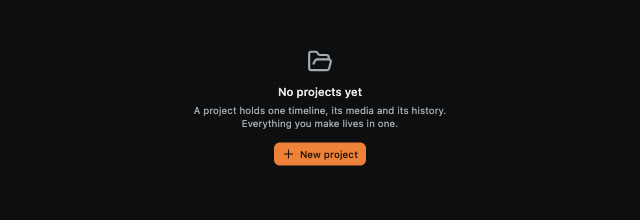
No projects yet? New project sits in the middle of the screen. In the panel on the right, click the Agent tab: it is the chat where you talk to the AI. In the menu at the top of the chat, pick Claude Code. Under each name the menu already says where it stands: Not installed, Signed out, or your plan (ready to use).
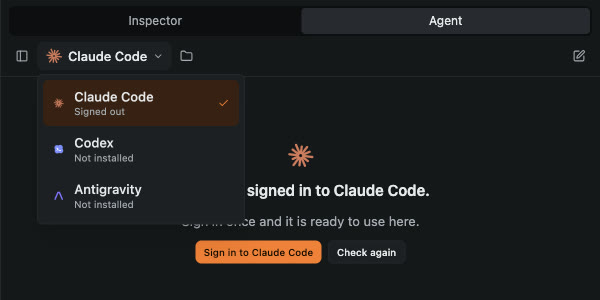
The chat menu lists each agent and what it still needs. -
Have an account for your agent
Lugh Xtudio is free. The agent does the thinking and the editing, on your own account:
Claude Code: needs a Claude Pro, Max, Team or Enterprise plan (the free plan does not include Claude Code).
Do not have one yet? Sign up here: Claude plans ↗ About Claude Code ↗
Codex: needs a ChatGPT Plus, Pro, Business, Edu or Enterprise account.
Do not have one yet? Sign up here: ChatGPT plans ↗ About Codex ↗
Antigravity: a personal Google account is enough.
Do not have one yet? Sign up here: Antigravity (Google) ↗ Getting started ↗
-
Install the agent from the chat
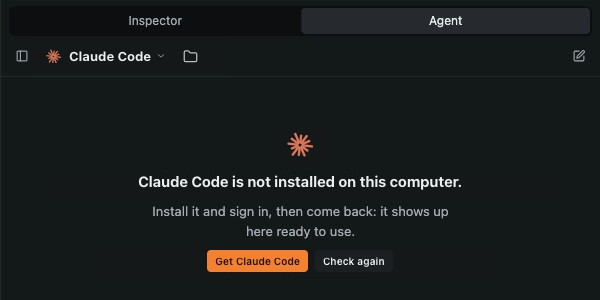
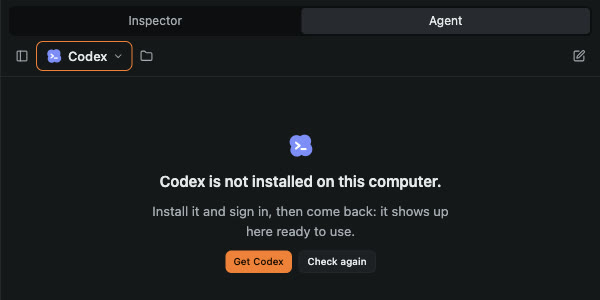
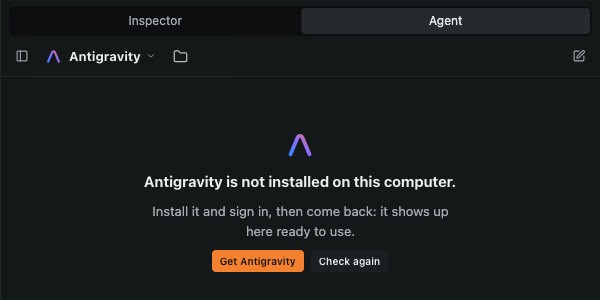
Agent not installed: the chat offers Get and Check again. If the chat shows Not installed, click Get Claude Code: it opens the official install page. The quickest way is to paste one command into the Terminal:
How to open the Terminal: Press ⌘ Cmd + Space, type Terminal and press Enter. Press the Windows key, type PowerShell and press Enter. Press Ctrl + Alt + T.
Copy the command below, paste it into the Terminal (Ctrl + V, or ⌘ Cmd + V on a Mac) and press Enter.
curl -fsSL https://claude.ai/install.sh | bash
irm https://claude.ai/install.ps1 | iex
curl -fsSL https://chatgpt.com/codex/install.sh | sh
powershell -ExecutionPolicy ByPass -c "irm https://chatgpt.com/codex/install.ps1 | iex"
curl -fsSL https://antigravity.google/cli/install.sh | bash
irm https://antigravity.google/cli/install.ps1 | iex
When the install finishes, go back to Lugh Xtudio and click Check again. Still saying Not installed? Quit Lugh Xtudio completely and open it again.
-
Sign in from the chat
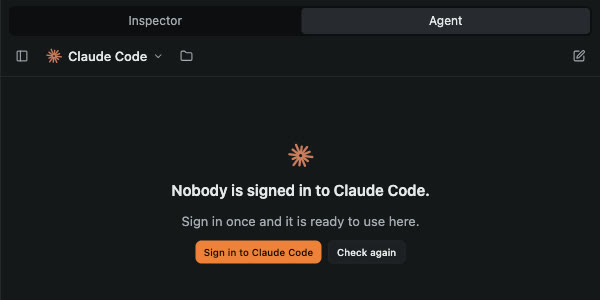
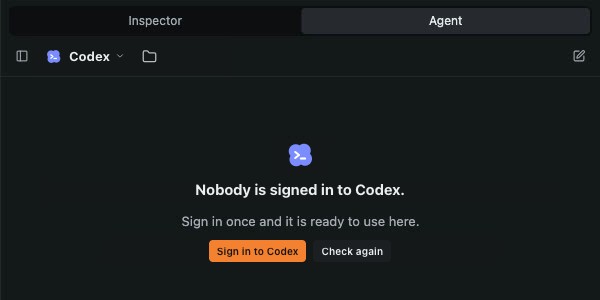
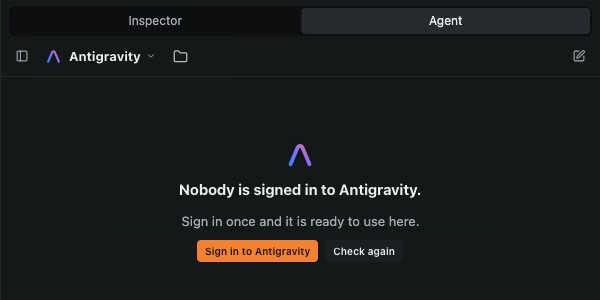
Not signed in yet: one click on Sign in sorts it. If the panel shows Sign in to Claude Code, click it. Your browser opens: sign in and approve. Come back to Lugh Xtudio: the panel notices on its own when you are done.
If the panel shows Sign in to Antigravity, click it. A Terminal window opens with Antigravity: choose to sign in with your Google account and finish in the browser. You can close the Terminal afterwards; the Lugh Xtudio panel gets ready on its own.
-
Paste your first request
Copy the request below, paste it into the message box of the Agent panel and press Enter. Change the channel name and the topic if you like.
Create a 20-second vertical intro for a channel called "My Channel". A big title that builds word by word, three quick cooking tips appearing one after another with icons made of shapes, smooth camera moves and a clean ending with the channel name.
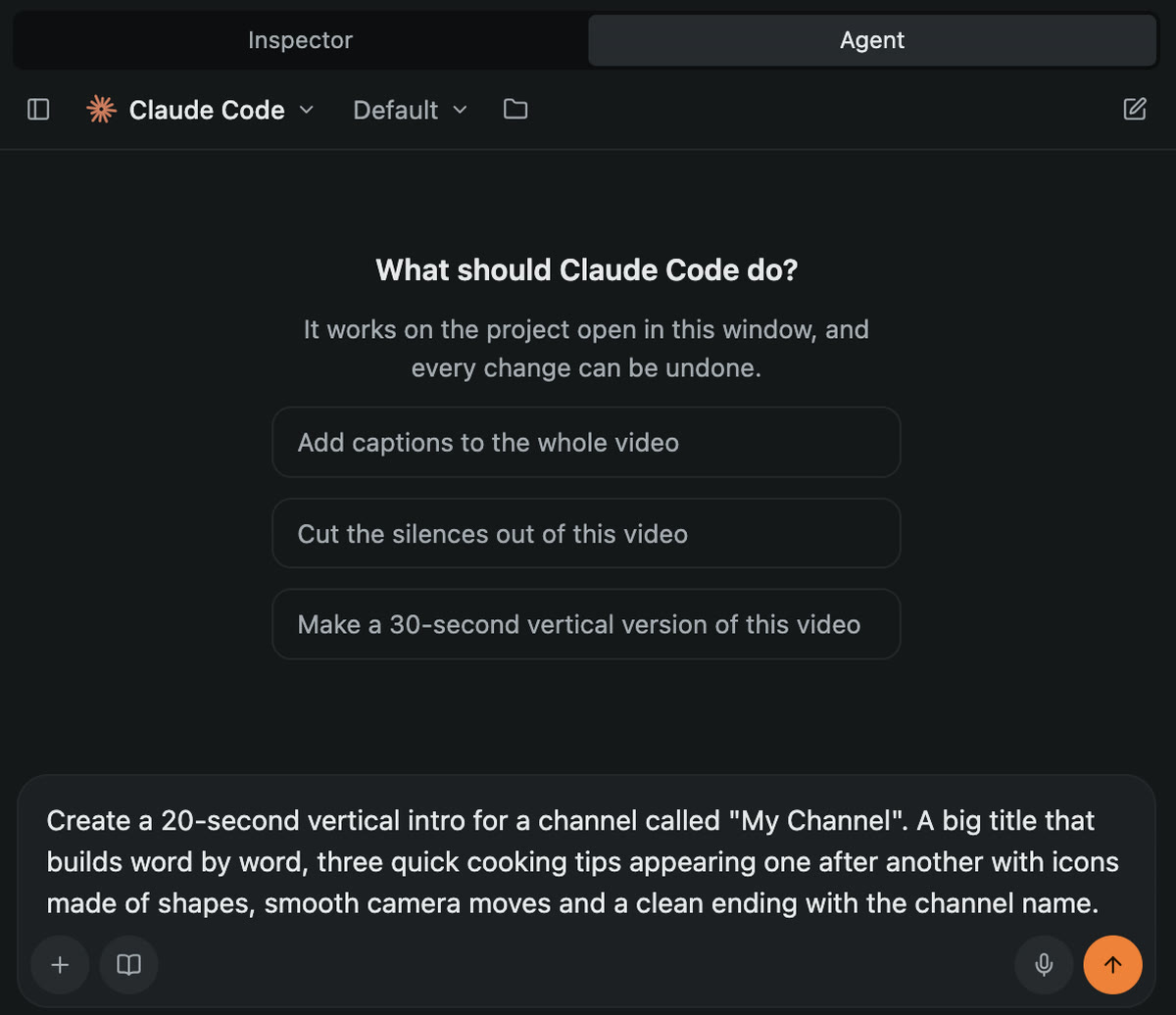
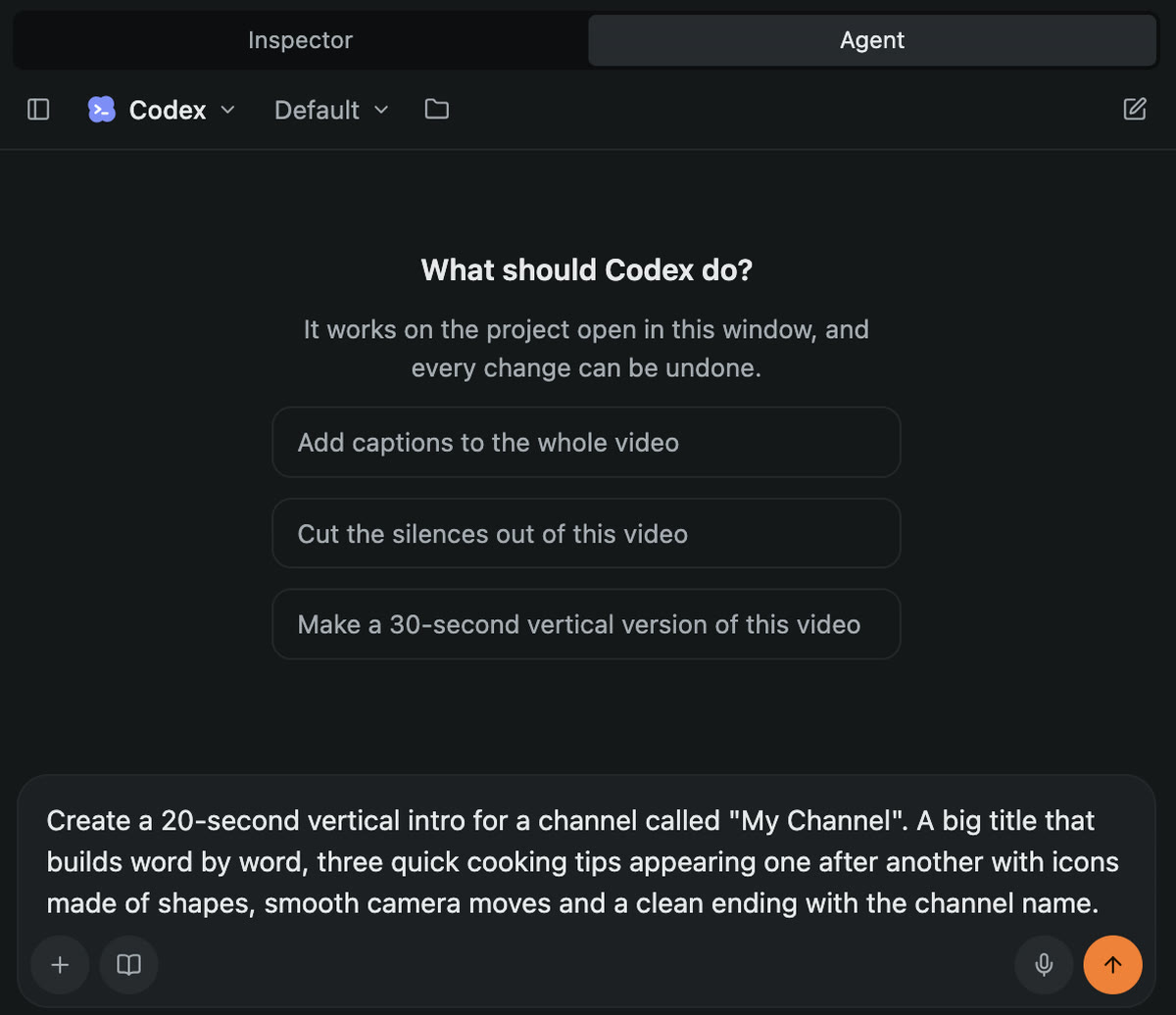
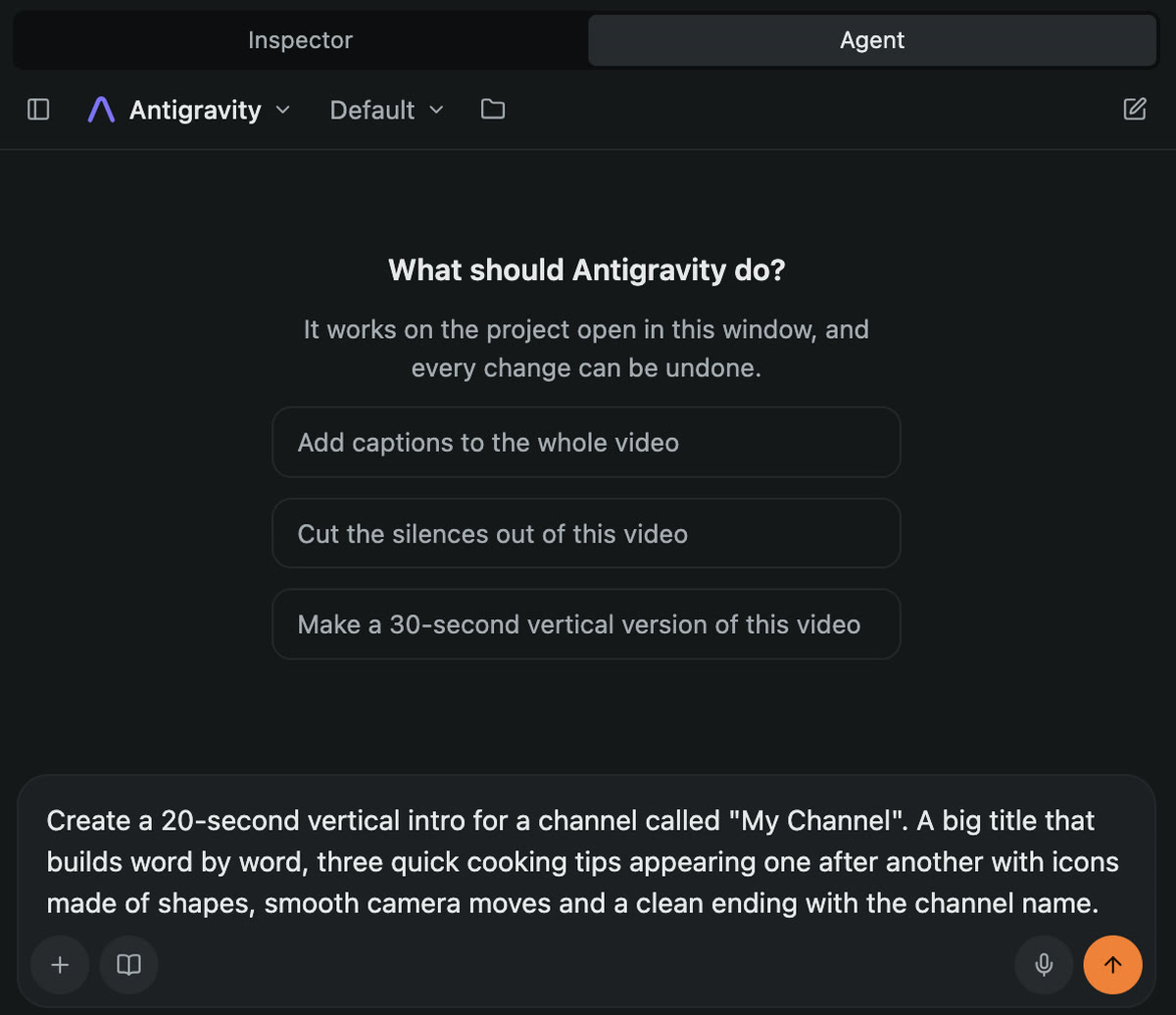
The first request pasted into the chat. Just press Enter. Now just watch: the agent builds the video on the timeline, in front of you, and checks the result before it says it is done. It takes a few minutes.
Want to use your own video? Drag the file into the Media tab and ask:
Put this video on the timeline, cut out the silences and add big captions that highlight the word being said.
-
Tweak it and export
- Click any clip on the timeline to change it by hand: move it, trim it, change its text, colour or animation.
- Ctrl + Z (or ⌘ Cmd + Z) undoes the agent one step at a time.
- Ask for more in the same conversation: “make the title yellow”, “speed up the ending”.
- When you like it, click Export, top right. On the free plan, what the agent edited carries a watermark; the licence takes it off.
-
Remove the watermark with your Pro key
After you buy the licence, your key appears on screen and arrives by email. In Lugh Xtudio, click Activate Pro at the top of the window. Paste the key into License key and click Activate Pro.
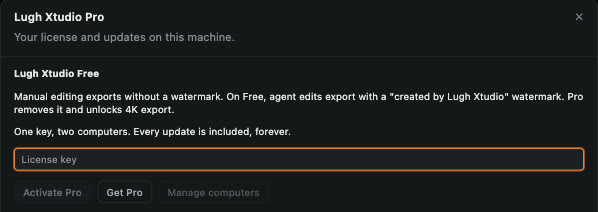
The Lugh Xtudio Pro window, with the key field. One key works on two computers. Changed computer? Manage computers frees the old one. No key yet? See the founder licence.
That is it. You made your first AI video.
Stuck somewhere? Write to support@lugh-lens.com and we will help.
Back to the home page